Transport standard texts

Forms, reports and various output communications use standard texts. These texts are maintained in SO10 and are used widely accross the system. How ever in SO10 there is no provision to generate transport for these standard texts and have to be manually created in the production system.

There are multiple ways to generate a change request such as program RSTXTRAN etc. This is one simple straight approach.

Go to transaction SE78

In “Standard texts section on the left, select the text ID and provide the text name on the right that you would like to transport.

texttransport

Click tranport icon to generate the change request.

Missing entries in MRBR

Transaction MRBR is used to release blocked invoices and at times you might not find a particular invoice to release in MRBR. Many think that the all open items in FI that are blocked in status should exist in MRBR to release.

For example I had run an FBL1N report for open items with “R-Invoice verification” block indicator in the selection parameters. Usually all the line items shown in the report are expected to be available to release through MRBR. However in certain cases you might not find all them for release. Here are the possible reasons.

a. The invoice document is cancelled/reversed in the system and not cleared. Open item report does pull the invoice and its cancellation document and if there was an “R” block on the invoice it stays even after cancellation but this invoice doesn’t show up in MRBR and it is what usually anyone would expect to happen. After clearing in FI, this item disappear from open item.

b. If the block indicator was added manually to the invoice such as using FB02 etc. Invoice for which block indicator was added manually after posting doesn’t show up for release in MRBR. This is because MRBR uses a different structure RBKP_BLOCKED to track blocked invoices and it is not linked to the changes happening in FI. Maybe SAP thinks that invoice blocks initiated in FI area has to be released in or changed in FI only.

These two cases might help you to understand when you find an invoice missing in MRBR output.

Commitments with PO’s on project budget

Commitments with PO’s on project budget

When a purchase order is created “Account assignment category – P”, the order value is raised as an commitment value on the project budget and adjusts the availability. This order value includes service/material costs and condition values such as freight. The next step is GR/service entry and during this step the actual cost is posted to the WBS element and hence the commitment value on the project has to reduce accordingly. Day to day transactions are not as simple as the example I mentioned. So I will take one step more advance example and explain in detail what happens in the background.

Say you had done GR for only partial value, in such case the balance of the PO value that had not yet been received will still be as a commitment. What if the invoice is for a lesser amount than the PO value and you do not want to hold that balance as a commitment on the project. There is “final invoice” indicator in PO – invoice tab, once the indicator is checked the balance value is no more a commitment on the project. See the example below.

PO value: 7500
GR value: 6554

COOI table before final invoice being checked. You can check table COOI or run transaction CJI5. Here it shows a balance of $946 as a commitment on the project.

After checking “final invoice” indicator in PO, the commitment is set to 0.

Material/Service and Freight

Say you have created a PO for quantity 2 and value $10,000 and freight cost of $1000 maintained using condition type.

Post GR for quantity 1 and that would result an actual cost posting of $5,500 (including $500 freight) to project and reduce the commitment to $5,000 + $500.
Now check the final invoice indicator in PO. (Informing system that there would be no more GR’s or Invoice for this PO). This should reset the commitment to “0”. That is not the case when freight is involved.

Surprisingly it resets the material/service line commitment on the PO but the balance freight value for quantity 1 ($500) still stays on the project commitment. This is why at time users complain that they should still have enough budget to create a PO but system issues error say no budget available, this is because of such commitments on the PO. See the screen shot from COOI table after final invoice is checked in the PO. The second line is reset to 0 but the first line “freight” still has a balance of $500.

As of now I am not sure if there is any setting in the condition type that would avoid this but will update if I find anything.

Change material valuation class

To change material valuation class, the materials shouldn’t have

  1. Valuated stock in current or previous period.
  2. Open purchase orders or delivery schedule lines.
  3. Production order for which goods movement has already taken place.

If any of the above conditions fail, then follow the procedure mentioned.

1. If valuated stocks already exist, you can change the valuation class only as follows:

a) Post the stocks of the material to an interim account.
b) Change the valuation class in the material master record.
c) Post the stocks of the material back to their original account.

2. If open purchase orders already exist, you can only change the valuation class if you first flag the corresponding purchase order items for deletion.

3. If production orders exist for which a goods movement has already taken place, you can only change the valuation class if you first set the status of the production orders to Deleted.


However message for open purchase orders and production orders can be switched to warning messages. MM 326, MM 327

Once you have changed the valuation class, carry out a new material costing if necessary, or use transaction CKMM to change the price determination control from 3 to 2 and then from 2 to 3 again to avoid incorrect standard cost component split for price.

Batch job for a module pool program

Generally scheduled batch jobs can be maintained to process programs periodically. However if the program is "module pool" program, then it is not possible to maintain variants and schedule a batch job. In such cases a custom program has to be created to call the module pool program. Maintain selection parameters as required or similar to the mod. pool program and schedule job with variant for the custom program. Hopefully this should help you.

Handling tax on freight in US – Taxware

Hello… its been long time.

There are couple ways in which taxation on freight can be handled and this post applies only to systems using Taxware for tax calculation.

Freight as a separate line item in sales order

I suggest to use this method if you are using multiple shipping methods (title passed at ship-to point, title passed at ship-from point etc)

The only way to handle multiple shipment methods and tax freight according is by using product codes. Taxware delivers standard set of product codes that automatically determines the tax rates accordingly. You can see how the system applies taxes under each of these codes by using tax008 to list the file. Here are some examples

40000 – Title to the goods passes to the purchaser at the purchaser’s location.

43000 – Title to the goods passes to the purchaser at the sellers location. etc

These product codes are maintained in TTXP table. Here internal product codes are mapped to external (taxware) product codes. Internal products codes are assigned to the tax code properties in transaction FTXP

So in this method, a freight material has to be maintained in  the sales order and an appropriate tax code with the relevant product code assigned to it will determine the right taxes.

Freight as a condition type in pricing

This method is recommended only if one method of shipping is used by the company. Product codes can not be used in this scenario because it applies to the gross amount and freight amount on the line item. There are few steps that need to be maintained.

1. Gross Amount and Freight amount need to be sent to taxware in different fields.

  • In pricing procedure maintain any of 1-6 numbers in the subtotal field for the freight condition type. Make sure that this number is not assigned to any other condition types.
  • In enhancement “FYTX0002” Maintain the following code “ch_user_changed_fields-freight_am = i_input_user-kzwi(1-6)”. This step copies the condition value in to the freight amount field sent to Taxware. In pricing procedure make sure to exclude this amount from gross amount used for tax calculation. If not this might lead to multiple tax calculation on freight.

2. Maintain”taxfrtpd” file in Taxware

In the file “taxfrtpd” we maintain which states in US are taxable and which are not. This is a binary file when 1 – taxable and when 0 – non-taxable applies to states arranged chronologically.

This method is useful for US shipments who doesn’t want to create a separate freight material and use condition type instead.

Dispute Payment Difference using Reason Code

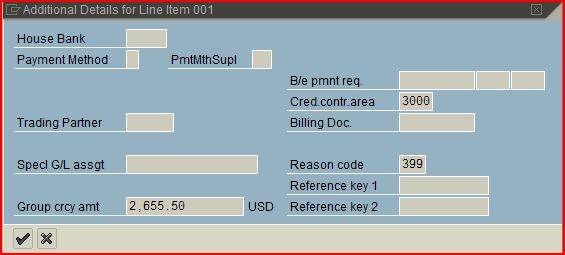
It is possible that customer had disputed the amount charged of the invoice and paid only partial amount. In such case the open item for the residual amount has to be disputed.

This scenario can be handled through assigning a reason code to the open item. If a customer representative had to dispute an item, a pre-configured reason code has to be assigned to the open customer line item.

Image

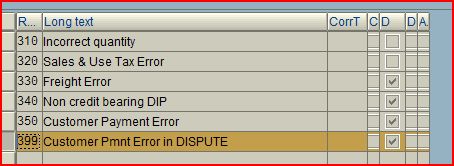
Reason code has to be maintained through configuration.

Menu Path: Accounts Receivable and Accounts Payable -> Business Transactions -> Incoming Payments -> Incoming Payments Global Settings -> Overpayment/Underpayment -> Define Reason Codes

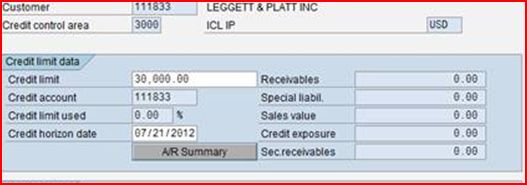
In this transaction, reason codes are maintained by co code. Here we maintain the reason code for the dispute item by turning on the indicator (T053R-XSTRP) for the given reason code. Disputed items do not raise the total receivables for a customer in  credit management system. Credit management ignores these line items as receivables and therefore not considers it against the oldest open item nor percentage of open items with specific number of days in arrears.

Image


Image


CO-PA derivation from VBKD using table lookup

CO-PA derivation using table lookup is usually a single derivation step defined in transaction KEDR. For example to derive country, city and postal code of customer from table KNA1, we define a single step as shown below.

In case of derivation from table VBKD, we need to define two steps. If you take a look at the line items in table VBKD, some of the items have “POSNR” – line item number from sales order and some of the line items doesn’t have. If the line item information differ to that of header in the order, then line item number is populated and if it is similar to the information on header, then line item number is “blank”. So line item number information in table VBKD is inconsistent. Values in CO-PA could be missing or wrong in some cases if only one single derivation rule is defined.

First step:

Table lookup from VBKD when line item number exists. POSNR exists only if the line item is different from the sales order header information. If you are deriving from table VBKD, I expect that you need line item information in CO-PA. So make sure that this is your first step in the derivation rules. In this step define rule as shown below.

Source field POSNR is mapped to KDPOS. This rule works only if VBKD-POSNR has the line item information.

Second Step:

Table lookup from VBKD when line item number doesn’t exist.

POSNR is mapped to USERTEMP field which is “blank”. USERTEMP fields are generally used as value carriers from one rule to another, so make sure that the USERTEMP field used in this step is not used in any prior steps or user exits. Also you might want to make sure that the second step does not overwrite the values if derived from the first step.